 RadioStudio
 Clear, controlled music playback
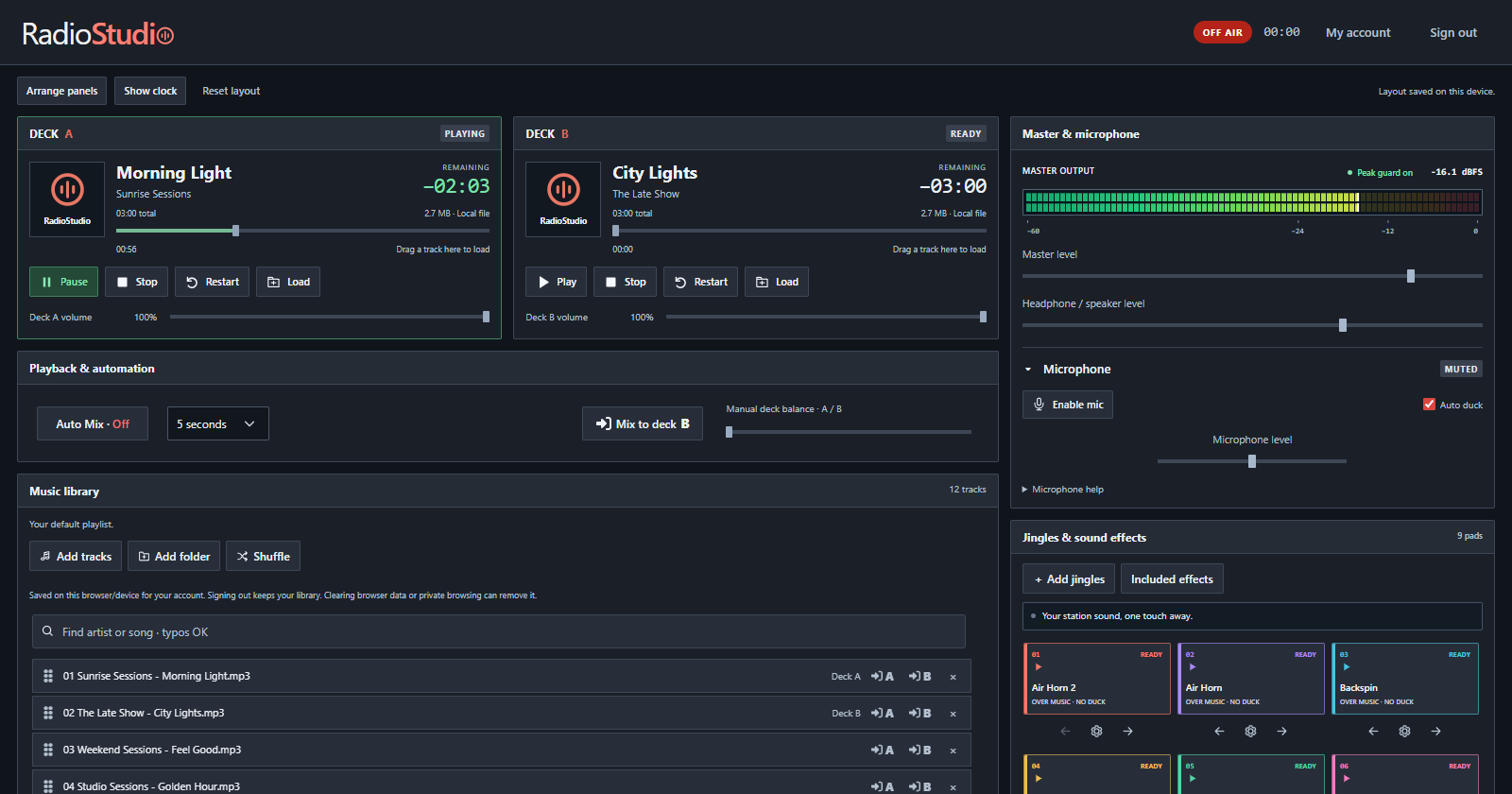
Load songs into Deck A or B using the buttons or drag and drop. Prepare your next track, control each deck’s volume and keep the current song protected from accidental replacement.
BETA ONLINE RADIO AUTOMATION
Everything you need to prepare your next live show. Mix your music, schedule playlists and bring your voice on air—all from your browser, with a free studio and live encoder.
Free studio and encoder · optional paid radio hosting. Try a 30-minute demo before signing up. Music stays on your device.
Your music plays from your device. Keep it awake and connected. Playback and schedules run while your studio stays open.
Android: works on many current phones with Chrome; performance varies by device.
Mac & iOS: may work in Safari, but RadioStudio isn’t designed or tested for these platforms.
BUILT AROUND YOUR SHOW
Manage your music library, automate playback and schedule shows in one radio workspace. Take the microphone whenever you need to, with your station controls close at hand.
Load songs into Deck A or B using the buttons or drag and drop. Prepare your next track, control each deck’s volume and keep the current song protected from accidental replacement.
Keep your station moving with Auto Mix, which prepares the next song and handles the transition. Search your compact music library, reorder the queue, shuffle tracks and choose whether played tracks stay.
Enable your microphone when you need it. Auto duck can lower the music while you speak.
Watch your stereo levels and adjust the master and headphone output separately. Choose Auto level, Peak guard and Silence recovery independently to suit your show.
Drag panels into a layout that suits your show and save it for next time. Keep your decks together, bring jingles within reach or make more room for your library.
Add audio through its own drop zone, then trigger jingles and station idents with one tap. Set each pad’s volume and repeat timing. Your audio stays on this device.
Add a large analogue and digital clock using your computer’s local time, with 12- or 24-hour display.
Your account remembers the track list; this browser stores the audio. Reconnect matching files on another device. Removing played tracks follows your Keep played tracks choice.
Enter the live DJ or source details from MediaCP or your provider. Connect to Icecast, Shoutcast v1 or a compatible Shoutcast 2 service using the built-in encoder.
With the hosting package, broadcast to RadioStudio’s Icecast service and share your direct HTTPS stream.
A three-second audio reserve helps cover brief interruptions. Broadcast protection retries a lost connection while the studio stays open, awake and connected.
Go live and follow your connection in Transmission. Choose automatic track titles or your own show title. Silence recovery respects an enabled microphone for talk shows.
Plan music-folder shows for a chosen date, every day or selected weekdays. Use your computer’s local time and create separate schedules for different parts of your day.
Schedule a remote DJ or another station’s direct audio stream. RadioStudio fades from your decks to the incoming stream, with your studio kept open and connected.
Let the current song finish or fade over at the scheduled time. Return to a fresh default-playlist track afterwards, with up to 10 seconds of reconnection attempts if remote audio drops.
Install RadioStudio as a Windows desktop app from Chrome or Edge. A progressive web app gives you the same studio in its own window, with a shortcut for your next show. Keep it open while broadcasting.
Dedicated import windows for tracks, folders, jingles and scheduled folders keep file drops where they belong. Browse instead if you prefer, with clear guidance and progress as music is added.
Choose MP3 or AAC+ and the bitrate your station supports in Encoder settings. Save your connection once, then go live from the studio without a separate desktop encoder.
An audio reserve can help with brief delays, but adds latency and cannot replace audio during a long outage. Always check your station’s listener output.
YOUR FILES. YOUR COMPUTER.
Add music from your computer, arrange your queue and play it locally in your browser. When you go live, your programme audio is streamed to the station. Your original music files stay on your device.
Compatible files include MP3, WAV, Ogg, FLAC, M4A/AAC and Opus, depending on your browser and the file’s codec.
BEFORE YOU BROADCAST
RadioStudio helps you run a radio station from your browser: organise a music queue, play tracks automatically, schedule music-folder shows and remote sources, and trigger station jingles. You can also present live with your microphone and send your programme to an Icecast or compatible Shoutcast server. Playback runs on your computer, so keep the studio open, awake and connected.
Schedule music folders for a chosen date, every day or selected weekdays, using your computer’s local time. Jingle pads can repeat at their chosen interval. You can take manual control during your show and view recent playback activity in the studio.
No. Music files play locally from your computer in your browser. Only your live programme audio is sent to the streaming server. Your local library is not a cloud music library.
RadioStudio’s automatic playback and schedules run in your open browser or desktop app. Keep your computer awake and connected. For playback with your computer switched off, a hosting service such as MediaCP AutoDJ runs the music on its server instead.
Yes. Use the live DJ or source connection details supplied for your MediaCP service. Choose the matching Icecast or Shoutcast-compatible encoder option. The existing station service remains responsible for its AutoDJ and live switching.
Closing the studio, putting the computer to sleep or losing your connection interrupts the live source. Broadcast protection retries interrupted connections with a three-second delay and no fixed time limit while your studio remains available. It cannot generate music while your device is asleep or the browser is closed. After a refresh, browser permission or missing local files may require you to choose Resume broadcast. An existing MediaCP service may return to its own AutoDJ depending on that service’s configuration.
Your saved track list and schedules follow your account, but the music files do not. Audio stays in this browser on this device. On another computer, reconnect the matching tracks or folders. Browser storage can be cleared or evicted, so keep your original music files.
RadioStudio is designed for Windows 10 and 11 desktops and laptops. Up-to-date Chrome is recommended; Edge also works. We suggest a recent four-core processor around 2 GHz or faster and 8 GB RAM or more, plus a stable connection with at least 5 Mbps upload available. These are starting recommendations, not tested minimum requirements.
Android: works on many current phones with Chrome; performance varies by device.
Mac & iOS: may work in Safari, but RadioStudio isn’t designed or tested for these platforms.
Linux and Firefox have not been validated. Use headphones with a microphone and keep the studio open, your device awake and your internet connected.
RadioStudio supports direct Shoutcast 2 connections where the server accepts v1-compatible sources. Native v2-only source connections are not supported. Use the details and connection mode supplied by your provider.
Contact the Shoutstream team through your support area. Include your browser, connection type and the error shown, but do not send passwords in screenshots.
Your studio and live encoder are free. Connect to a station you already have, or choose optional hosting when you need a listening link.